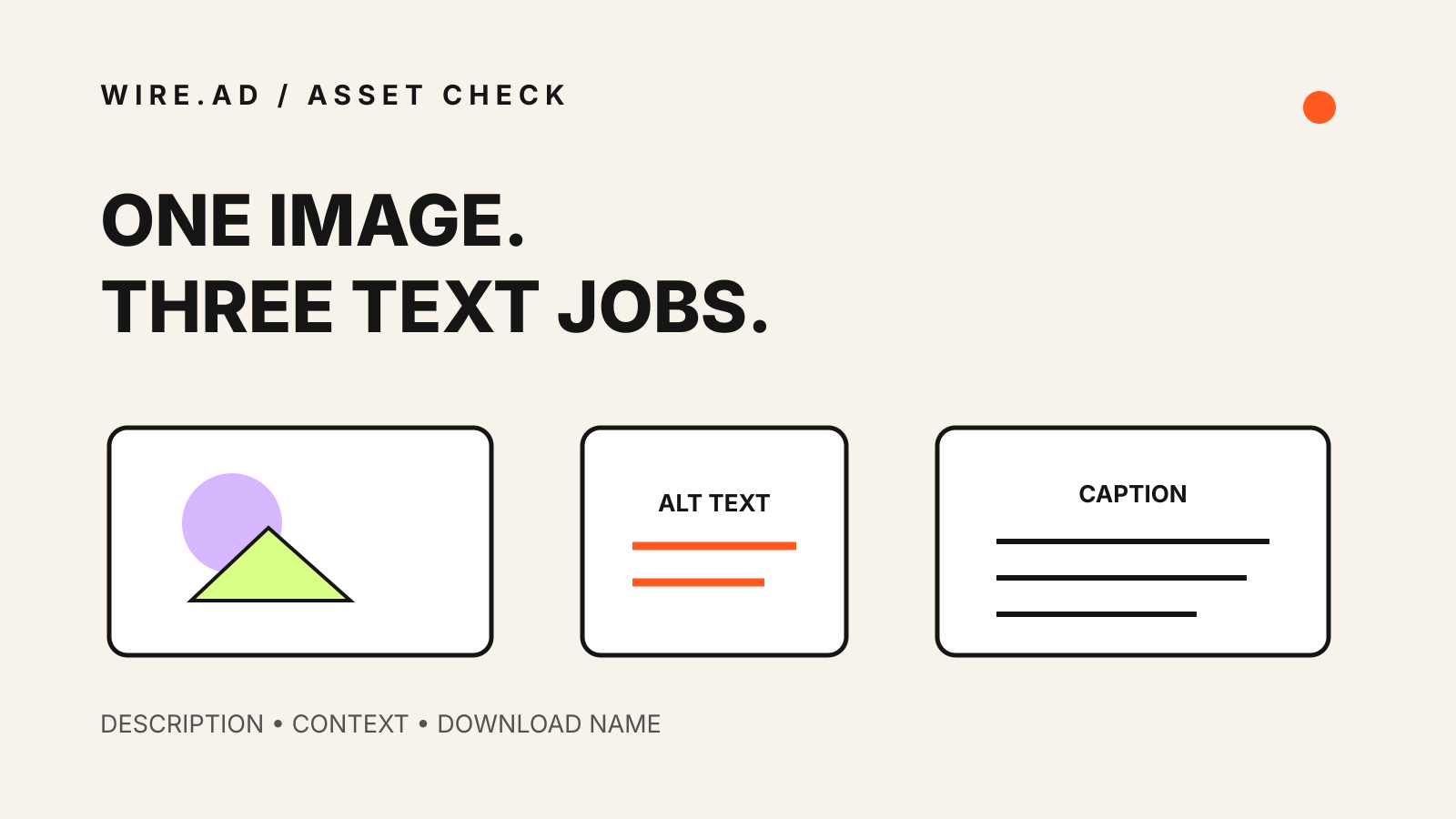
A press release image has several jobs. It must be understandable to people who cannot see it, useful in the page’s context and easy for an editor to identify in a download folder.
Those jobs call for different text. Alt text describes the image’s purpose. A caption adds editorial context. A filename helps the production team manage the asset. Copying the same sentence into all three fields is usually a sign that none of them was written for its real reader.
Decide what the image is doing
Start with the image’s purpose on the page.
The W3C alt decision tree separates common cases: informative images, functional controls, images that contain text, complex charts and decorative images. That classification changes what the alternative text should contain.
An executive portrait is informative when identity matters. A product screenshot may be informative or complex, depending on how much information the article expects the reader to take from it. A decorative brand shape can use empty alt text when it adds no content.
Write alt text for the missing information
Good alt text replaces the information a sighted reader would otherwise lose. It is specific to the use of the image, not a universal description of every visible detail.
For a product interface, name the screen and the state that matters: “Transfer review screen showing the recipient, amount and confirmation button.” For a chart, summarize the relevant pattern in the alt text and put the full values in nearby text or a data table.
Avoid openings such as “image of” unless the medium itself matters. Screen readers already announce that the element is an image.
Do not turn alt text into an SEO field. Google’s image SEO guidance recommends descriptive, useful text and warns against keyword stuffing. The same rule helps accessibility: describe the asset accurately and stop.
Keep essential text out of the pixels
If an image contains a headline, event date or product specification that readers need, repeat that information in HTML near the image. Text inside a JPEG or PNG can be difficult to enlarge, translate, copy or read with assistive technology.
Brand marks and short labels can remain in the asset when the design calls for them. The article should not depend on those pixels to communicate an essential fact.
For charts and diagrams, provide a short summary followed by the relevant values, method or source. A long paragraph squeezed into alt text is hard to navigate and still may omit the structure of the data.
Use captions for context and credit
A caption answers a different question: why is this image here?
Useful captions identify people, products, dates or locations when those details matter. They can also attribute an image, explain whether it is a rendering, and state the source of a chart.
A caption should not repeat the first paragraph of the release. It should help an editor understand the asset without opening a separate brief.
When a photo requires a credit line, preserve the exact credit wording and licensing conditions. Do not hide rights information in alt text; screen-reader users should not be forced to hear a legal credit every time the image is encountered.
Make downloadable assets editor-friendly
Attach the largest approved original the outlet is allowed to use. Do not upscale a small image and call it high resolution.
Use a plain filename that identifies the subject and version, for example:
company-product-dashboard-oct-2026.pngceo-firstname-lastname-headshot-2026.jpgmarket-volume-by-region-q3-2026.png
Avoid names such as final-final-2.png or camera-generated codes. Keep the file extension accurate. Include the photographer or rights details in the asset note, not only in the filename.
Check the asset in the published crop
A technically correct 1600 × 900 cover can still fail in a square social crop or a narrow article card. Put the focal object and any permitted short text inside a safe central area.
Inspect the actual card, article header and social preview after publication. Check that faces are not cut off, text remains legible and the alt attribute was saved. A CMS preview alone does not prove that a downstream template preserved the field.
A practical release-image checklist
Before distribution:
- Confirm the image is approved for the planned outlets and territories.
- Record the owner, creator and license or supplied-use permission.
- Supply the original dimensions and accurate MIME type.
- Write purpose-specific alt text.
- Add a caption with identity, context and credit where needed.
- Put chart values and critical facts in HTML.
- Use a descriptive filename.
- Test the likely card and social crops.
- Keep a text-only release that remains complete without the image.
After publication:
- Open the public page and inspect the rendered alt attribute.
- Check the caption and credit.
- Open the image URL and confirm the file is intact.
- Review the mobile crop.
- Record any outlet that strips accessibility fields so the next order can account for it.
Accessible image preparation is part of release production, not a repair step. The best time to write the description, caption and credit is while the facts and permissions are still in front of the team.
Sources reviewed: W3C Web Accessibility Initiative image decision tree, updated May 13, 2024; Google Search Central image SEO guidance, accessed October 19, 2026.